How to install the Anamico MDM Android App
These instructions are for installing the Anamico MDM app on a device which you wish to control app usage.
If you already have Anamico MDM app installed on your device you can skip to Granting Permissions.
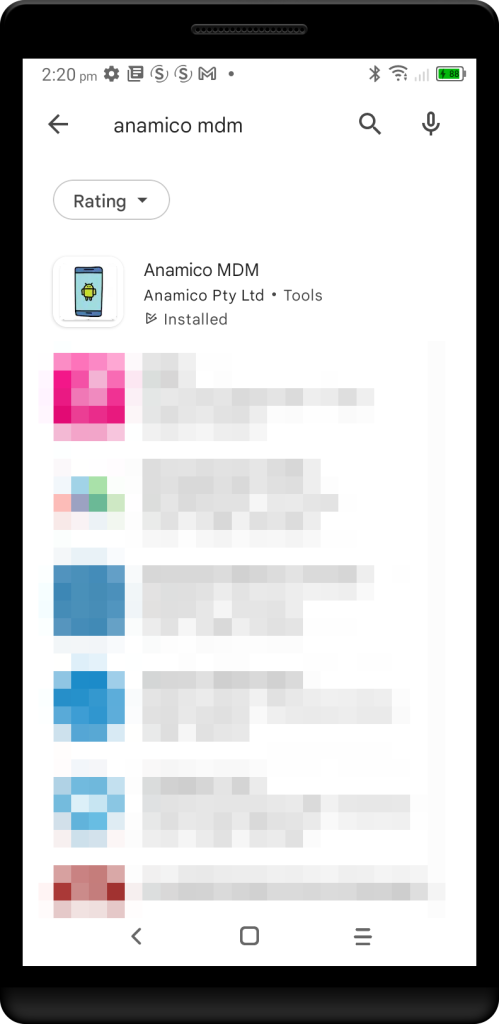
Open Google Play and search for “Anamico MDM“.
Alternately, you may have been given a link to tap, use that link and it will pull down the app without having to search for it on Google play.
Note: You only need to install the Anamico MDM app on devices you wish to control.
Select Anamico MDM and tap “Install“


The app will download and install
Once installed, tap “Open“

Granting permissions
Anamico MDM requires a set of permissions to be able to function correctly, these include such things as being able to draw over other apps to show a “block” screen, and look at what app is currently running to determine the action it should take.
Follow the instructions below to grant the required permissions when you first run the app.
Note that if someone tries to disable some permissions or stop Anamico MDM or delete it, the system will notify you so you can fix the problem.
If you have already installed the Anamico MDM app and granted all the permissions, you can jump straight to Connecting to your account.

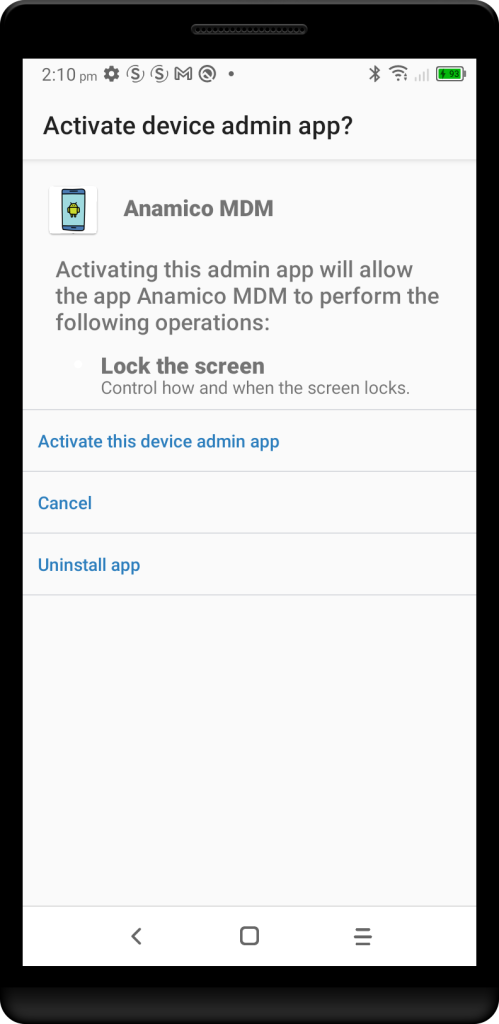
In order to be able to Lock the Screen, Anamico MDM requires “Device Administrator” permissions.
The app will not work properly if you do not allow this permission, to do so, tap “Continue” and a settings sheet will open.
The app will try and take you directly to this screen, but if you instead see a screen with a list of apps, tap on “Anamico MDM“.
Then tap on “Activate” (or it might read something like “Activate this device admin app“) to allow the screen lock functionality.
Note that you might also need to tap “Back” if it doesn’t automatically take you back to Anamico MDM.
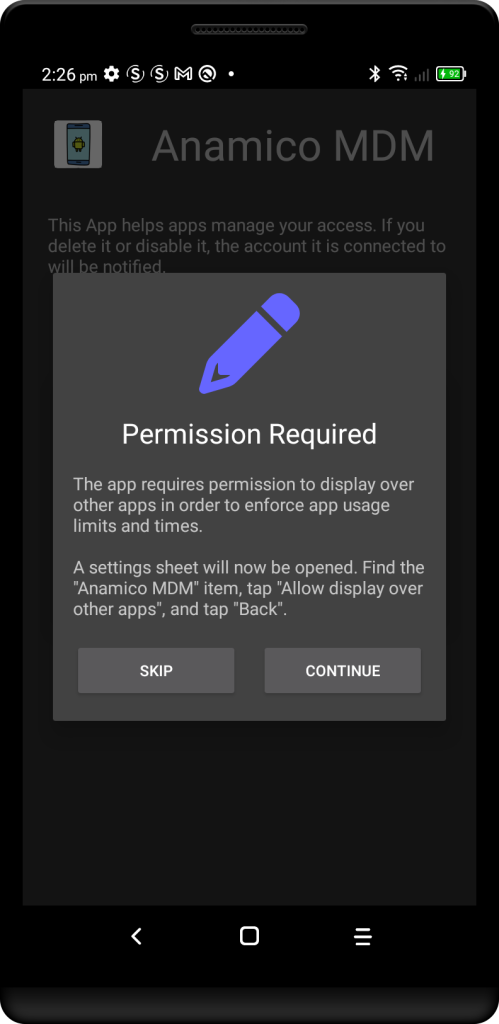
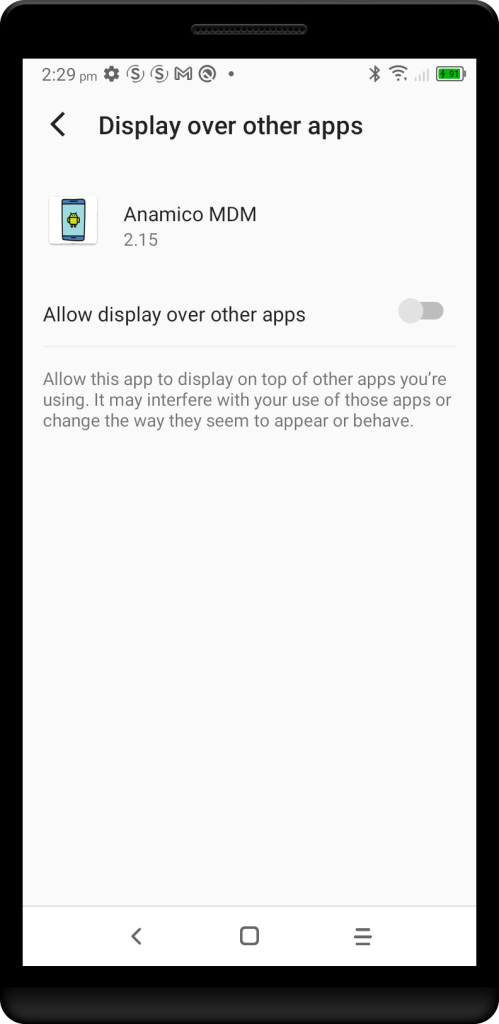
In order to be able to block certain apps from running at various times, Anamico MDM requires “Display over other apps” permissions.
The app will not work properly if you do not allow this permission, to do so, tap “Continue” and a settings sheet will open.
Turn on the “Allow display over other apps” option and then tap “Back“.

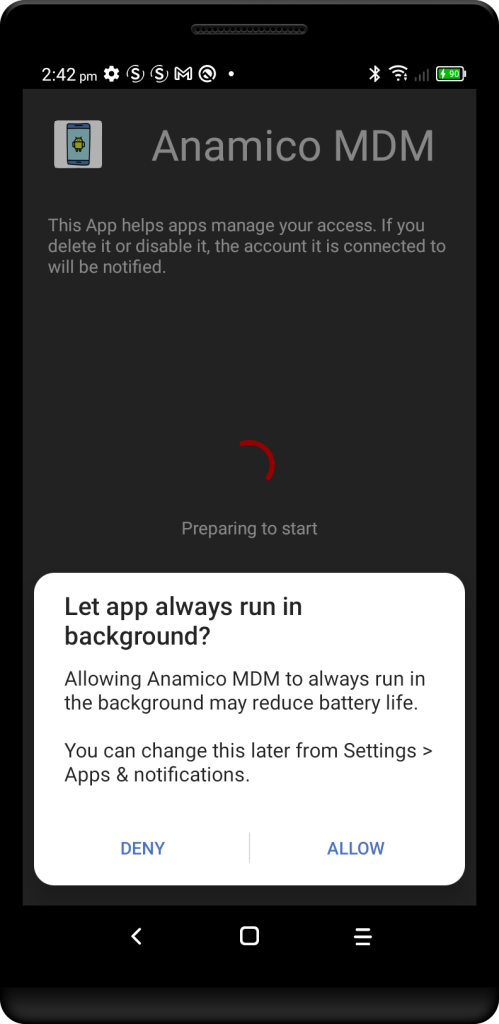
When a device runs low on battery, it sometimes stops apps running in the background to give more battery time. If this happens to Anamico MDM, it will no longer be able to manage and block apps.
So to prevent your device from stopping Anamico MDM, tap “Continue” and a dialog will open to confirm you want to do this.
Choose “Allow” to prevent your device from stopping Anamico MDM when the battery gets low.
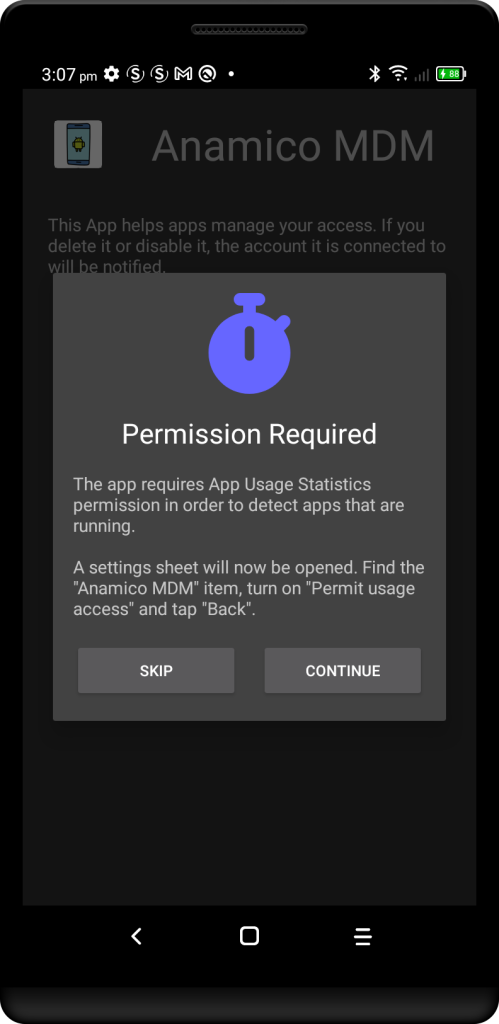
In order to correctly detect apps that may be running (and those that need to be blocked), Anamico MDM requires the “App Usage Statistics” permission.
To permit this function, tap “Continue” and a settings sheet will open.
- Tap on “Anamico MDM“
- Turn on “Permit usage access“
- Tap “Back“


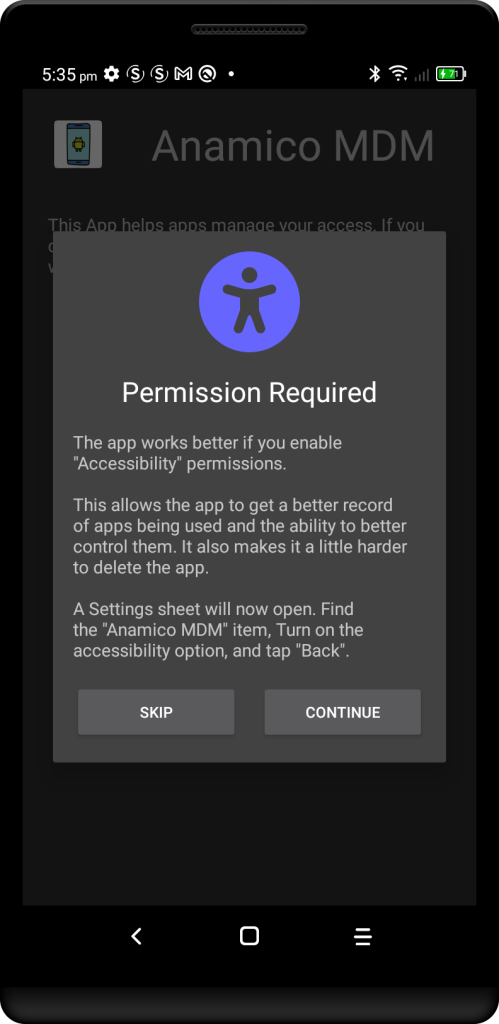
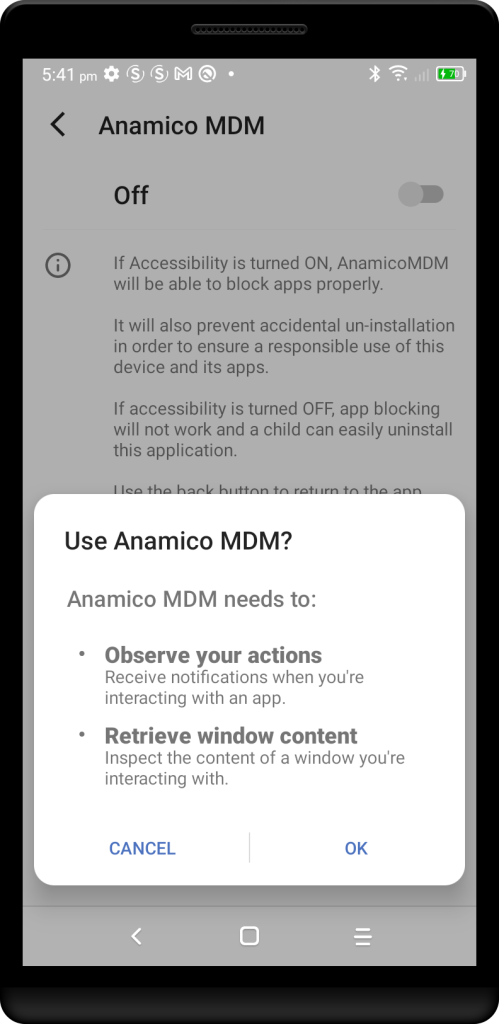
Lastly, Anamico MDM works better with “Accessibility” permissions. This helps in 2 ways:
- firstly, it can better ensure monitoring and controlling running apps, and
- secondly, it makes it harder for a child to delete the app.
To permit this function, tap “Continue” and a settings sheet will open.
- Tap on “Anamico MDM“
- Turn on “Permit usage access“
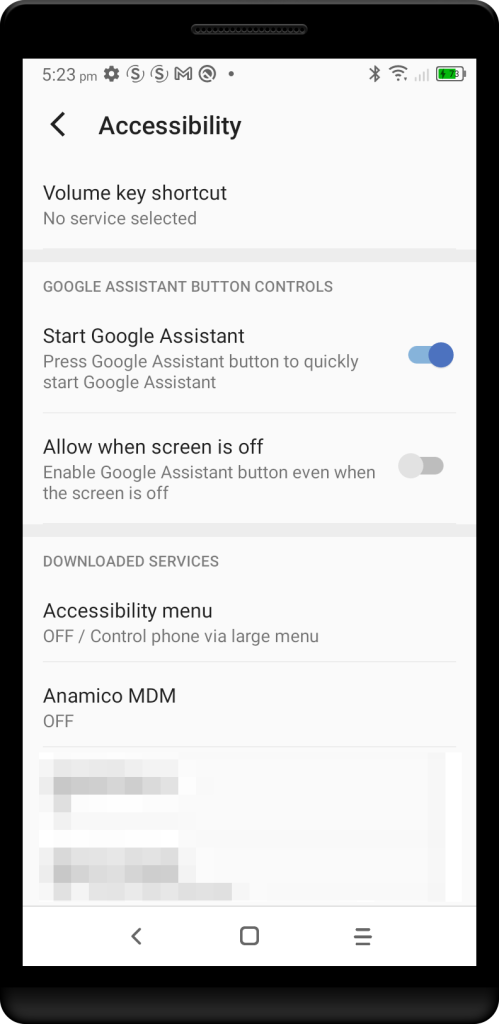

Tap “OK” to turn on Accessibility. Then tap “Back“
Connecting to your account
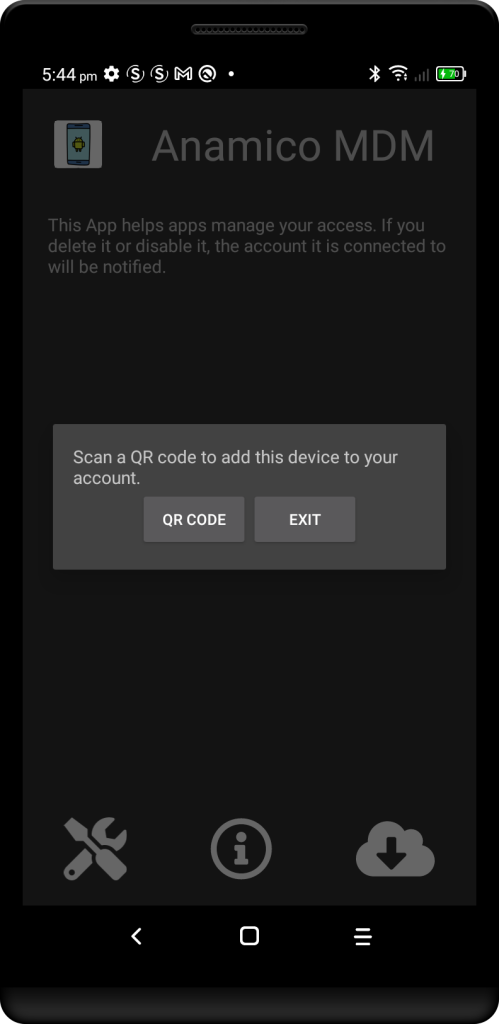
Installed!
When you get here, it means you have completed installing the Anamico MDM app and are ready to connect it to your account.
Tap “QR CODE” to open the camera.
In order to use the camera to scan the QR Code, you may need to give the app permission to use the camera.
Tap “ALLOW” to give access to the camera to scan the QR Code


Once you scan the code, the Anamico MDM app will attempt to connect the device to your account and configure it.
Congratulations!
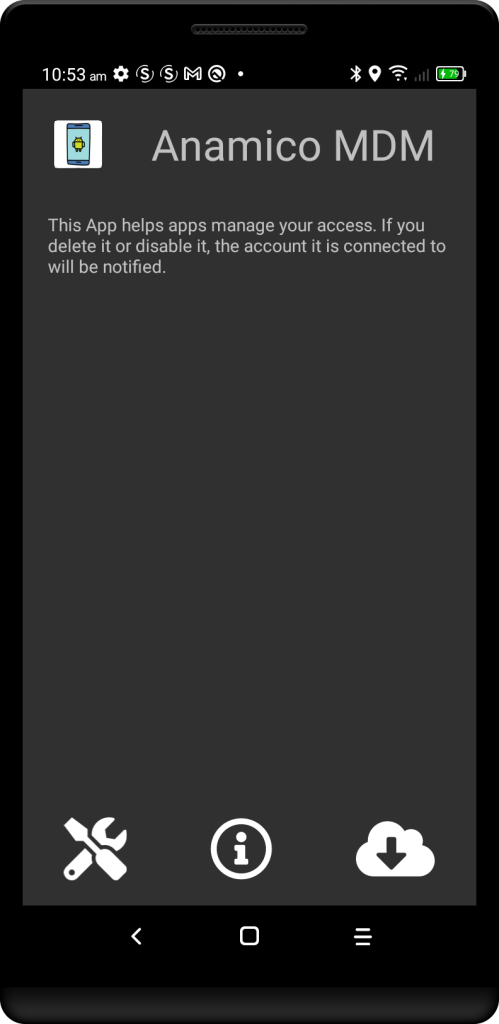
When you see the plain Anamico MDM screen, it means your device is connected to your account.
From this point on, it will be able to monitor and control usage and warn you if the app is removed or stopped, or some required permissions are turned off.
About the Author
